Here in this post, you’ll get a free download link of CreativeMarket – Seamless Pattern Creation Kit 3810758 compress file from below. Seamless is a photoshop plugin helping you to create seamless/tileable patterns or textures with just a few clicks. What exactly does that mean? A Seamless pattern can be repeated without revealing harsh edges. To achieve this, this tool offers a handful of time-saving functions. You Can Also Download Universal Retouch Panel For Photoshop.
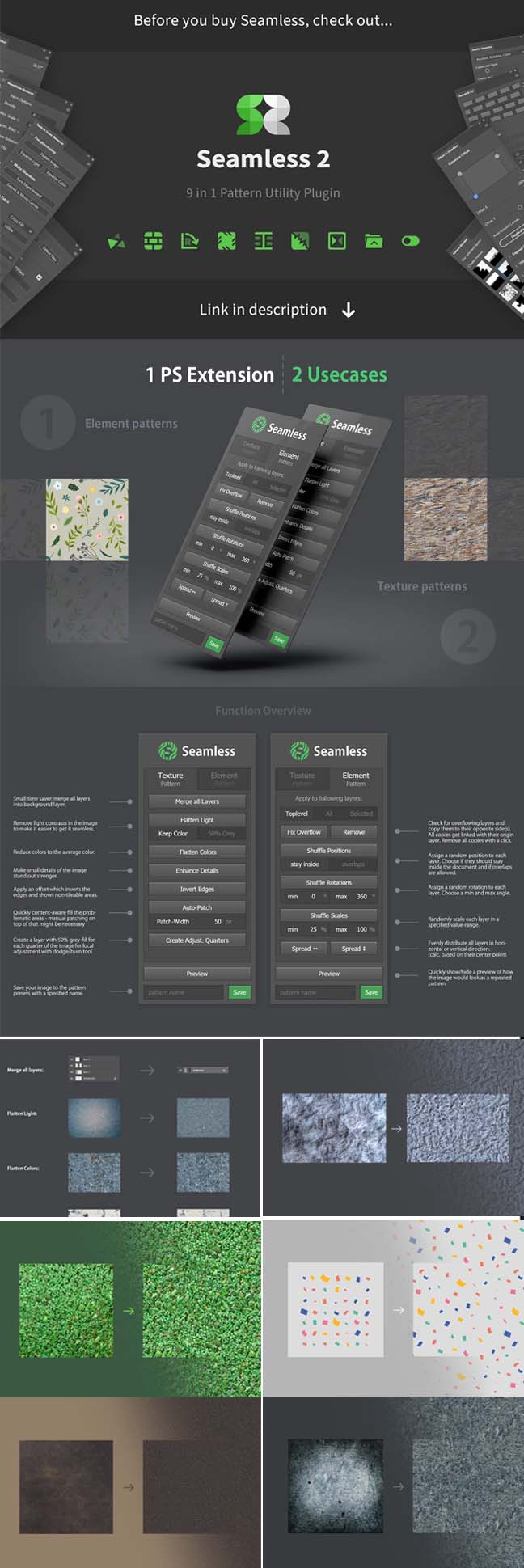
Screenshots of Seamless Pattern Creation Kit:
Below I have shared with you screenshot images of the Seamless Pattern Creation Kit to get a better idea.
Features:
Photoshop Extension / Plugin
Easy to use Panel / UI
Helps to create seamless Element & Texture based patterns
Preview & Save your patterns right in the panel
Installation Guide included
Works with Photoshop CC+
Function Overview: (Global)
- Preview: Quickly show/hide a preview of how the image would look like a repeated pattern.
- Save: Save your image to the pattern presets with a specified name.
Function Overview: (Element Patterns)
- Fix Overflow: Check for overflowing layers and copy them to their opposite side(s). All copies get linked with their origin layer. Remove all copies with a click.
- Remove: Delete all the shifted layers that were created by the action above
- Shuffle Positions: Assign a random position to each layer. Choose if they should stay inside the document and if overlaps are allowed.
- Shuffle Rotations: Assign a random rotation to each layer. Choose a min and max angle.
- Shuffle Scales: Randomly scale each layer in a specified value range. (creates Smart Object to preserve quality)
- Spread Horizontally/ Vertically: Evenly distribute all layers in the horizontal or vertical direction. (calc. based on their center point)
Function Overview: (Texture Patterns)
- Merge all Layers: Small time saver: merge all layers into the background layer.
Flatten Light: Remove light contrasts in the image to make it easier to get it seamless. (color & grey mode)
Flatten Colors: Reduce colors to the average color.
Enhance Details: Make small details of the image stand out stronger.
Invert Edges: Apply an offset that inverts the edges and shows non-tileable areas.
Auto Patch: Quickly content-aware fill the problematic areas – manual patching on top of that might be necessary
Create Quarters: Copy each quarter of the image to its own layer for local adjustments
Zip File Password: freegfx4u.com